
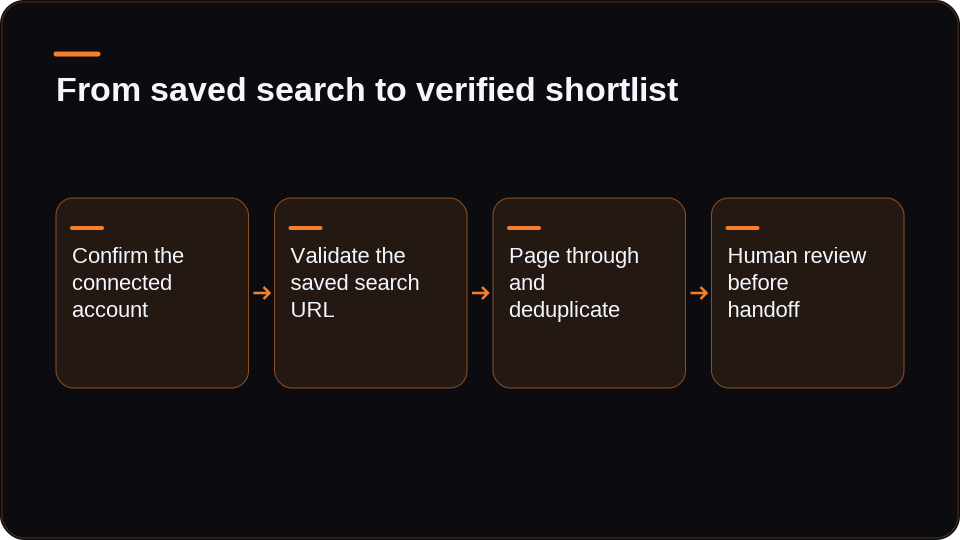
A LinkedIn Sales Navigator API workflow takes a people search you already saved in Sales Navigator and turns it into a checked shortlist your code can hand on. LinkedIn lists its Sales Navigator API permissions behind partner approval. Without that approval, the alternative is a third-party service that runs the search through a connected member's session, seat and quotas.
This guide follows that second route from one saved search to a shortlist a person signs off, and it marks which steps ReachMCP documents and which ones you build yourself.
Executive summary
What you get: a reviewed list of leads from a Sales Navigator search your team already trusts, produced by code instead of someone copying result pages, and held until a person approves it.
What it takes:
| Item | Who provides it | What to know |
|---|---|---|
| A Sales Navigator seat | LinkedIn, per member | Billed by LinkedIn, not included in ReachMCP |
| A connected LinkedIn account | The seat holder | Connected through a Chrome Desktop extension and that member's own session |
| The access layer | ReachMCP, priced per connected account | Published list rates (USD, observed 2026-11-16): $20 a month for the first account, $7 each from the 2nd to the 10th, $5 each from the 11th. Check tax and checkout currency separately |
| Paging, deduplication, review, CRM mapping | Your team | Not provided as a ready feature |
What it does not give you: official LinkedIn API status, any guarantee on account safety or compliance, a ready CRM sync, or an approval step enforced by the API. The search runs as a real member, so that member's account carries the risk.
The decision to make: whether your team will own a small pipeline, meaning one script and one review step per client seat. If nobody will review the shortlists, do not automate the import yet.
Is there an official LinkedIn Sales Navigator API?
LinkedIn documents API access in its guide to getting access to LinkedIn APIs. That guide separates permissions an app can request on a self-service basis from permissions that need approval, and, as observed on 2026-11-16, the Sales Navigator API permissions it lists require partner approval. It gives no per-call price. If your company is, or can become, an approved partner, evaluate that route first, within LinkedIn's terms. The LinkedIn API documentation on Microsoft Learn and the LinkedIn developer portal are where you confirm what your app can actually be granted.
If that route is closed to you, a session-based provider runs the search as a connected member. ReachMCP is one of these, and it is not the official LinkedIn API: its documentation describes using the account holder's session and LinkedIn's internal interfaces. Nothing in that design guarantees compliance with LinkedIn's terms, freedom from restrictions or a given throughput. Everything below assumes this second route.
What is documented and what you build
The hard part of this workflow is keeping two things apart: what the provider documents, and the pipeline you assemble around it. This table is the map for the rest of the guide.
| Piece | Status | What it means in practice |
|---|---|---|
| Run a Sales Navigator people search by URL on a connected account | Documented by ReachMCP | You supply the URL; that account needs its own Sales Navigator seat |
An account identity on every call; keys restricted to listed accounts (allowed_account_ids) |
Documented contract and dashboard; server-side isolation not independently tested | Pin each run to one account, and also assert it in your own code |
REST with an X-API-Key header, base app.reachmcp.com/api |
Documented (some landing pages show an api.reachmcp.com host instead) |
Exact route and field names come from the REST reference |
| Reads, including search imports, consume quotas | Documented; quotas are ReachMCP-configurable | Budget each run per account, not per key |
| Building a Sales Navigator search URL from filters over MCP | Documented tools; the identifiers chosen are not guaranteed correct | Not used here: this guide starts from a search that already exists |
| Page size, cursor or page parameter of the import | Not stated in this guide | Read the reference, and write stop rules that do not depend on it |
| Deduplication, review gate, CRM write | Not provided | Steps 5 and 6 below; yours to build |
Technical deep-dive: saved search to shortlist
Before you start
You need one connected LinkedIn account whose holder has Sales Navigator, an API key restricted to that account, and the account's ID as ReachMCP reports it. The prerequisites checklist in our people search API guide covers each of these and how each one fails, so it is not repeated here.
Step 1: Confirm which account will run the search
A Sales Navigator search runs with one member's seat, network and session. Run it with the wrong account and you get a different result set, or a failure, and nothing in a successful response tells you it was the wrong seat. For an agency, the wrong account can mean the wrong client.
Three checks come before any call:
- The account ID matches the seat holder. Take it from the ReachMCP dashboard, where connected accounts are listed, and store it next to the client or owner name in your own configuration.
- The key is restricted to that account only. The documented restriction limits which accounts a key can act on. Server-side isolation has not been independently tested, so keep one key per account or per client, and refuse in code any run whose account ID is not the one configured for that search.
- The seat is active. Ask the account holder to open Sales Navigator before the first run. A lapsed seat is a LinkedIn-side problem that no API call can fix.
Step 2: Validate the saved search before any call
The search URL is the contract: whatever Sales Navigator returns for that URL and that account is what the import reproduces. Validate it where you can see it.
- Open the saved search with the account that will run it, then copy the URL from the address bar of the results page, not from a shared document or a chat thread.
- Note the results count Sales Navigator displays. You will compare it with what the import returns in Step 6.
- Read the URL. Check that it is a Sales Navigator people search (the script below refuses anything outside the Sales Navigator path you configure) and whether its filters are spelled out in it. If it only points at a saved item, assume it may resolve differently, or not at all, for another seat, and test it with the account that saved it.
- Look at the first page by eye. If the first 10 results are not people you would contact, fix the search in Sales Navigator. Code will not fix it.
If the search was first built by an assistant with ReachMCP's search-building tools, this step matters more: the assistant picks the industry, geography and title identifiers, and nothing guarantees they are always the right ones.
Step 3: Submit the search URL for that account
The script below is a synthetic example; no live call was made for this guide. The route, the HTTP method and every request and response field name are placeholders to map from the ReachMCP REST reference before you run it. None of them is presented here as a documented name.
// snav-shortlist.mjs - Node 18+ (global fetch). Synthetic example, never run against a live account.
// Placeholders: SEARCH_ROUTE, the HTTP method and every request/response field name.
import { createHash } from 'node:crypto';
import { writeFile } from 'node:fs/promises';

const BASE_URL = 'https://app.reachmcp.com/api';
const SEARCH_ROUTE = process.env.REACH_SEARCH_ROUTE;           // the search-by-URL route from the reference
const API_KEY = process.env.REACH_API_KEY;                     // restricted to ONE account
const ACCOUNT_ID = process.env.REACH_ACCOUNT_ID;               // the account holding the Sales Navigator seat
const EXPECTED_ACCOUNT_ID = process.env.EXPECTED_ACCOUNT_ID;   // from your own client configuration (Step 1)
const SNAV_PATH_PREFIX = process.env.SNAV_PATH_PREFIX ?? '/sales/'; // check it against the URL you copied
const MAX_ROWS = Number(process.env.MAX_ROWS ?? 200);          // YOUR budget for this run, not a ReachMCP limit
const UI_COUNT = process.env.UI_COUNT ?? null;                 // the count Sales Navigator displayed (Step 2)
const searchUrl = process.argv[2];

if (!SEARCH_ROUTE || !API_KEY || !ACCOUNT_ID || !searchUrl) {
  console.error('usage: REACH_SEARCH_ROUTE=... REACH_API_KEY=... REACH_ACCOUNT_ID=... EXPECTED_ACCOUNT_ID=... node snav-shortlist.mjs "<sales navigator url>"');
  process.exit(2);
}
if (ACCOUNT_ID !== EXPECTED_ACCOUNT_ID) {
  console.error(`refusing: account ${ACCOUNT_ID} is not the account configured for this search`);
  process.exit(2);
}
const parsed = new URL(searchUrl);
const host = parsed.hostname;
if (!(host === 'linkedin.com' || host.endsWith('.linkedin.com')) || !parsed.pathname.startsWith(SNAV_PATH_PREFIX)) {
  console.error(`refusing: not a Sales Navigator URL (${host}${parsed.pathname})`);
  process.exit(2);
}

// A short, stable fingerprint of the exact search, so every row can say where it came from.
const searchFingerprint = createHash('sha256').update(searchUrl).digest('hex').slice(0, 16);

async function callSearch(requestBody) {
  return fetch(`${BASE_URL}${SEARCH_ROUTE}`, {
    method: 'POST', // placeholder: use the method the reference documents
    headers: { 'X-API-Key': API_KEY, 'Content-Type': 'application/json' },
    body: JSON.stringify(requestBody),
  });
}
The two refusals are the point of this block. A wrong account or a non-Sales Navigator URL ends the run before it spends any quota, which is cheaper than discovering the mistake in a review.
Step 4: Page through the results with explicit stop rules
How a large search comes back, as numbered pages, a cursor or something else, is defined by the REST reference, and this guide does not assert which. What you can decide on your own is when your loop stops. Five rules cover the failure modes that matter:
- No next page: the response says there is nothing more.
- Empty page: nothing came back, so stop.
- No new rows: a page made only of leads you already hold means paging is not advancing. Stop rather than spend quota on repeats.
- Your row budget:
MAX_ROWSis yours, sized to the account's quota and to how many rows a person can review properly. - Any error: quota, session and permission errors are normal states in this setup. Stop, keep what you have and record why.
// The only paging-specific code. Map these four functions to the reference.
const firstRequest = () => ({ account_id: ACCOUNT_ID, url: searchUrl }); // placeholder field names
const nextRequest = (prevBody, prevRequest) => null; // return the next request, or null when there is no next page
const rowsOf = (body) => body.items ?? [];           // placeholder: where the rows sit in the response
const leadIdOf = (row) => row.id;                    // placeholder: the stable identifier of a lead

const kept = new Map();
let request = firstRequest();
let pages = 0;
let stopReason = 'no_next_page';

while (request) {
  pages += 1;
  const res = await callSearch(request);
  if (!res.ok) {
    stopReason = `http_${res.status}`; // quota, session or permission: a state, not a crash
    console.error(`page ${pages}: HTTP ${res.status}`, await res.text());
    break;
  }
  const body = await res.json();
  const rows = rowsOf(body);
  if (rows.length === 0) { stopReason = 'empty_page'; break; }

  let fresh = 0;
  for (const row of rows) {
    const leadId = leadIdOf(row);
    if (!leadId || kept.has(leadId)) continue;
    kept.set(leadId, { lead_id: leadId, account_id: ACCOUNT_ID, search: searchFingerprint, page: pages, raw: row });
    fresh += 1;
    if (kept.size >= MAX_ROWS) break;
  }
  if (kept.size >= MAX_ROWS) { stopReason = 'max_rows'; break; }
  if (fresh === 0) { stopReason = 'no_new_rows'; break; }
  request = nextRequest(body, request);
}

const run = {
  account_id: ACCOUNT_ID,
  search_fingerprint: searchFingerprint,
  ran_at: new Date().toISOString(),
  pages_requested: pages,
  rows_kept: kept.size,
  ui_count_noted: UI_COUNT,
  stop_reason: stopReason,
  status: 'pending_review', // nothing downstream may read this file until a person approves it
};
await writeFile(`shortlist-${searchFingerprint}.json`, JSON.stringify({ run, rows: [...kept.values()] }, null, 2));
console.log(run);
Three design choices are worth keeping when you adapt it:
- It fails safe. Until you map
nextRequest, it returnsnulland the script reads one page only. An unmapped paging function under-reads, it never loops. - The stop reason travels with the data. The reviewer sees why the run ended without opening a log.
- The raw row is kept. Whatever the response contains stays available for review, so you choose identity fields from a real response rather than from assumptions.
This script does not resume an interrupted run. If you need that, store the last request with the run record and start from it next time.
Step 5: Normalise identities and deduplicate
Everything downstream needs to know who a row is and where it came from. Keep four things on every row: the lead identifier as returned, the account_id whose seat found it, the search fingerprint, and the run timestamp.
Inspect a real response before you choose the deduplication key. Sales Navigator and standard LinkedIn can identify the same person differently, so do not assume the identifier is a public profile URL your CRM can store as it is. If the next step needs the public profile, resolve it with a separate profile read; reading a member profile from your own tools covers that read and the quota it uses.
Then decide the scope of deduplication on purpose:
- Across runs of the same search: the same people come back next week. Key on lead identifier plus account.
- Across searches for one client: overlapping searches return overlapping people. Merge them before review, not after.
- Across clients: merging combines data found with different members' seats. Decide it deliberately, and by default keep each client separate.
A row without a usable identifier goes to review flagged as such. Dropping it silently hides a mapping problem.
Step 6: Stop before handoff
The import only reads. The next step, a CRM write, a connection request or a message, is where a mistake costs something, and nothing in the API stops it. ReachMCP's playbooks describe a numbered preview and a confirmation before writes, but that is an instruction an assistant follows, not an approval the server enforces, and direct API calls can write without human approval. The gate is therefore yours: the file stays pending_review until a named person approves it.
The reviewer works through five checks:
account_idis the account configured for this client.stop_reasonisno_next_pageormax_rows. Anything starting withhttp_means the run is incomplete.rows_keptagainstui_count_noted. A gap is expected when you capped the run; an unexplained gap means checking the search or the paging before anything moves on.- A handful of rows are spot-checked against Sales Navigator.
- Each row is marked keep or drop, with a reason.
What the reviewer sees can be as plain as this (all rows synthetic):
| lead_id | Title shown | Company shown | Found by account | Decision |
|---|---|---|---|---|
| lead_0001 | Head of Revenue Operations | Example Freight Ltd | acct_client_a | Keep |
| lead_0002 | Sales Operations Manager | Example Logistics GmbH | acct_client_a | Drop: outside target region |
| lead_0003 | VP Sales | Example Haulage SAS | acct_client_a | Keep, confirm seniority |
| (none) | Business Development Lead | Example Carriers BV | acct_client_a | Drop: no identifier to deduplicate |
Only approved rows move on. ReachMCP has no ready CRM sync for every tool, so field mapping and authorisations are integration work. For the write side, storing the LinkedIn identity on the contact and deduplicating before each write, our walkthrough for sending LinkedIn replies to a CRM with n8n covers the pattern.
Limits that shape a Sales Navigator import
- The seat belongs to the member. Sales Navigator is billed by LinkedIn and is not included in ReachMCP. If a seat lapses, searches stop for that account. For an agency, each client account that runs Sales Navigator searches needs its own seat.
- Quotas are per account. Reads, including search imports, consume quotas. ReachMCP's limits are configurable per action family and per account, with a global LinkedIn request cap; they are not LinkedIn's official limits, and the "reads are free of quota" shortcut found in some documentation ignores those caps. A large saved search may take several runs.
- Account risk stays with the member. The search runs through a real member's session. Per-account proxy and location fields exist, and a residential proxy is announced as provided, but neither is an anti-ban guarantee.
- The numbers in this guide are examples.
MAX_ROWS = 200and "the first 10 results" are illustrations, not LinkedIn or ReachMCP limits.
The general picture, subscription, provider quotas and account risk as three separate layers that cap any people search, applies here unchanged.
What this guide does not cover
- Building a search from plain language. That is a separate task, and the identifiers an assistant picks still need the check in Step 2.
- Any write into LinkedIn or Sales Navigator. No list, message or InMail step is described or implied here.
- Email enrichment. ReachMCP does not document a proprietary email enrichment, so the shortlist holds what the search returns.
Next steps
If you want the full profile behind each approved lead, continue with the member profile read guide before your CRM step. If you are ready to wire one saved search into your own code, start from the ReachMCP REST API integration page: connect one account, restrict one key to it, and run a URL you have already validated. If you own the budget, the ReachMCP pricing page lists the per-account rates and a seven-day trial without a card that starts at the first LinkedIn action; the quotas that apply during the trial are not stated, so treat them as unknown.
FAQ
Is there an official LinkedIn Sales Navigator API?
LinkedIn's access guide lists its Sales Navigator API permissions as requiring partner approval (observed 2026-11-16), separate from the permissions an app can request on a self-service basis, and it gives no per-call price. If your company qualifies as a partner, evaluate that route first. If it does not, third-party providers such as ReachMCP run Sales Navigator searches through a connected member's session. That is not the official API: it depends on the member's subscription, provider quotas and the member's account risk, with no compliance or non-suspension guarantee.
Can I import a saved Sales Navigator search through an API?
With ReachMCP, yes in the documented sense: you send the Sales Navigator search URL for a connected account whose holder has Sales Navigator, and the search runs as that member. Open the saved search with that same account, copy the URL from the results page, and note the count shown so you can compare it with what the import returns. The exact route, fields and paging come from the REST reference. This guide uses placeholders for them rather than guessing names.
Why does my import return fewer rows than Sales Navigator shows?
Check your own run first. A row budget, an error or a page with no new leads all end a run early by design, and the stop reason says which. Check that paging is mapped: an unmapped next-page function reads one page only. Check deduplication, which removes repeats by design. Then reopen the search with the same account, because results can change between runs. If the gap is still unexplained, hold the shortlist and investigate before anything is handed on.
Can one client's saved search run on another client's account?
Treat it as a different search. A Sales Navigator search runs with one member's seat, network and session, so another account can return a different result set or fail. If the URL only points at a saved item rather than spelling out filters, it may not resolve at all for another seat. Keep one account, one key and one configuration per client, refuse mismatched account IDs in code, and validate the URL with the account that will actually run it.
How many leads can I pull from one Sales Navigator search?
This guide gives no number, because the documentation it relies on does not establish one. Three things bound a run: the Sales Navigator seat on the connected account, ReachMCP's quotas (configurable per account and action family, with a global LinkedIn request cap, and not LinkedIn's official limits) and the paging the REST reference defines. A fourth limit is yours: how many rows a person can review properly. Set your row budget from the quota and that review capacity, not from the size of the search.
Can the shortlist go straight into my CRM?
You could wire it that way, but this workflow deliberately does not. ReachMCP has no ready CRM sync for every tool, so mapping, authorisations and deduplication are yours to build, and direct API calls are not gated by a server-side human approval. Keep the shortlist pending, have a named person approve rows, and only then run the CRM step. Store the LinkedIn identity and the account that found the lead on the contact, so later replies and profile reads can be matched to it.
Does ReachMCP include a Sales Navigator subscription?
No. The Sales Navigator seat belongs to the LinkedIn member and is billed by LinkedIn. ReachMCP is priced per connected account: its published list rates (USD, observed 2026-11-16) start at $20 a month for the first account, then $7 each from the second to the tenth and $5 each from the eleventh, with tax and checkout currency to confirm separately. For an agency, each client account that runs Sales Navigator searches needs its own seat on top of that.